Microsoft 365 Setup for Geelong
Microsoft 365 Setup for Small Business in Geelong
Microsoft 365 is no longer optional for small businesses in Geelong. It has become the core digital infrastructure for communication, file storage, and security — from accounting firms in Geelong CBD to construction companies in Belmont and healthcare clinics in Highton.
But here’s the problem: most businesses only use 20–30% of its capability. They set it up incorrectly, skip security steps, and never optimise it for real business use.
This guide explains how to properly set up, secure, migrate to, and use Microsoft 365 in real business environments across Geelong — covering:
- Real Microsoft 365 pricing (2026)
- Step-by-step setup process
- Security & MFA configuration
- Safe email migration
- DIY vs professional setup
- Local Geelong support options

What Microsoft 365 Is and Why It Matters in Geelong
A cloud-based system that replaces several separate tools with one connected ecosystem.
Microsoft 365 is a cloud-based business system that combines email, communication, storage, and security into one platform. Instead of managing separate tools, businesses get everything in one ecosystem. It replaces:
- Traditional email hosting
- Local file servers
- Basic office software
- Manual IT maintenance

Why Geelong Businesses Are Switching
Businesses in Geelong are moving to Microsoft 365 because:
- Staff work across multiple locations
- Remote work is increasing
- Email security threats are rising
- File sharing needs to be instant
- IT downtime is expensive
A single hour of email downtime can cost a small business hundreds of dollars in lost communication and delayed work. That’s why Microsoft 365 adoption is increasing across regional Victoria.
Microsoft 365 Core Ecosystem Explained
Built around interconnected systems — each part supports the other.

Outlook & Exchange
Outlook is the business email interface; Exchange Online is the email hosting system behind it.
Teams & Storage
Teams handles communication and meetings. OneDrive gives personal cloud storage, SharePoint runs the company file system.
Entra ID & Defender
Entra ID controls identity and login. Defender is the security protection layer across the whole system.
Why this matters: Most setup problems happen because these tools aren’t configured together properly — Outlook works but emails go to spam (a DNS issue), Teams works but files are missing (a SharePoint misconfiguration), or login works but accounts get hacked (MFA not enabled). Microsoft 365 isn’t a single tool. It’s a system.
Microsoft 365 Pricing for Australian Small Businesses (2026)
Cost is one of the biggest decision factors — but most businesses only see the monthly subscription cost.

| Plan | Best Use Case | Features Included | Real Cost (AUD/user/mo) |
|---|---|---|---|
| Business Basic | Startups, solo operators | Email, Teams, cloud apps | $8–$12 |
| Business Standard | Most SMBs in Geelong | Desktop apps + email + Teams | $15–$22 |
| Business Premium | Security-heavy businesses | Advanced security + device control | $25–$35 |
Hidden Real Costs Businesses Don’t Expect
Beyond licensing, businesses often pay for:
- DNS setup and correction
- Email migration services
- User onboarding and training
- Security configuration
- Ongoing IT support
These costs are usually the reason DIY setups fail.
Common cost mistake: Many businesses in Geelong choose Business Premium when they only need Standard. Others choose Basic and later realise they need desktop apps — leading to reconfiguration, downtime, and extra cost.
Microsoft 365 Setup Process
Proper setup follows a strict sequence — skipping steps causes system failures.

1. Tenant Creation
The root system controlling users, email domains, and security policies. Common mistake: using a personal email as the admin account.
2. Domain Connection
Your business domain connects via DNS — MX records for routing, SPF to prevent spoofing, DKIM for authentication, DMARC for spam policy.
3. Email & User Creation
Each employee receives an email account, login credentials, and storage access.
4. Shared Mailboxes
Business function inboxes like info@, accounts@, and support@ improve team efficiency and reduce confusion.
5. Application Deployment
Users install Outlook, Teams, and OneDrive across their devices.
6. Security Activation
MFA is enabled for all users — this single step prevents most cyberattacks.
Microsoft 365 Security Setup
The most important part of Microsoft 365 — and the part most often ignored in DIY setups.

Small businesses are common targets because they lack IT teams, reuse passwords, ignore MFA, and skip email security setup.
Security Layers Explained
- MFA — stops password-only access
- SPF — prevents fake email sending
- DKIM — verifies email authenticity
- DMARC — enforces email rules
- Defender — blocks phishing attempts
Real risk example: A hacked email account can lead to fake invoices sent to clients, payment redirection scams, data leaks, and loss of business trust.
| Mistake | Result | Real Impact |
|---|---|---|
| No MFA | Account takeover | Financial fraud risk |
| Incorrect DNS | Email failure | Missed clients |
| Shared logins | Internal exposure | Data leaks |
| No backup | Permanent loss | Business interruption |
How Microsoft 365 Is Used in Real Geelong Businesses
Microsoft 365 isn’t just software — it’s daily business infrastructure.

Outlook
Invoices, client communication, and scheduling.
Microsoft Teams
Staff meetings, remote communication, and project coordination.
OneDrive
Personal document storage and syncing across devices.
SharePoint
Company file storage, shared documents, and structured folders.
Exchange Online
Email delivery, spam filtering, and mailbox hosting.
Email Migration to Microsoft 365
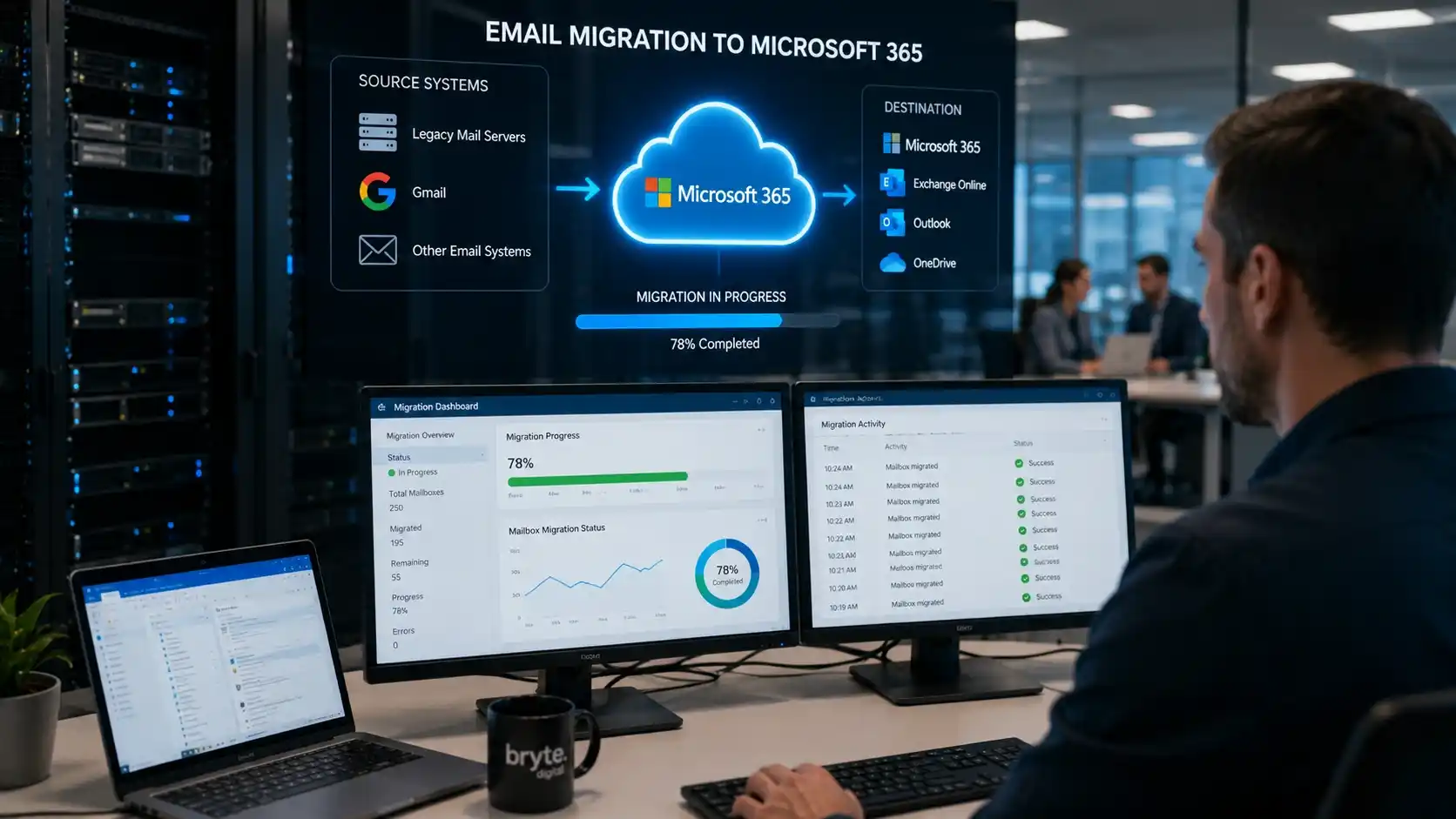
Migration is where most problems happen — skipping steps leads to data loss.
Common Migration Sources & Issues
Businesses typically migrate from Gmail, cPanel web hosting, or old Office systems. Common issues include:
- Missing emails
- Broken DNS settings
- Delayed syncing
- Downtime
Safe Migration Process
A safe migration follows this order:
- Full email backup
- Staged migration
- DNS cutover
- Verification testing
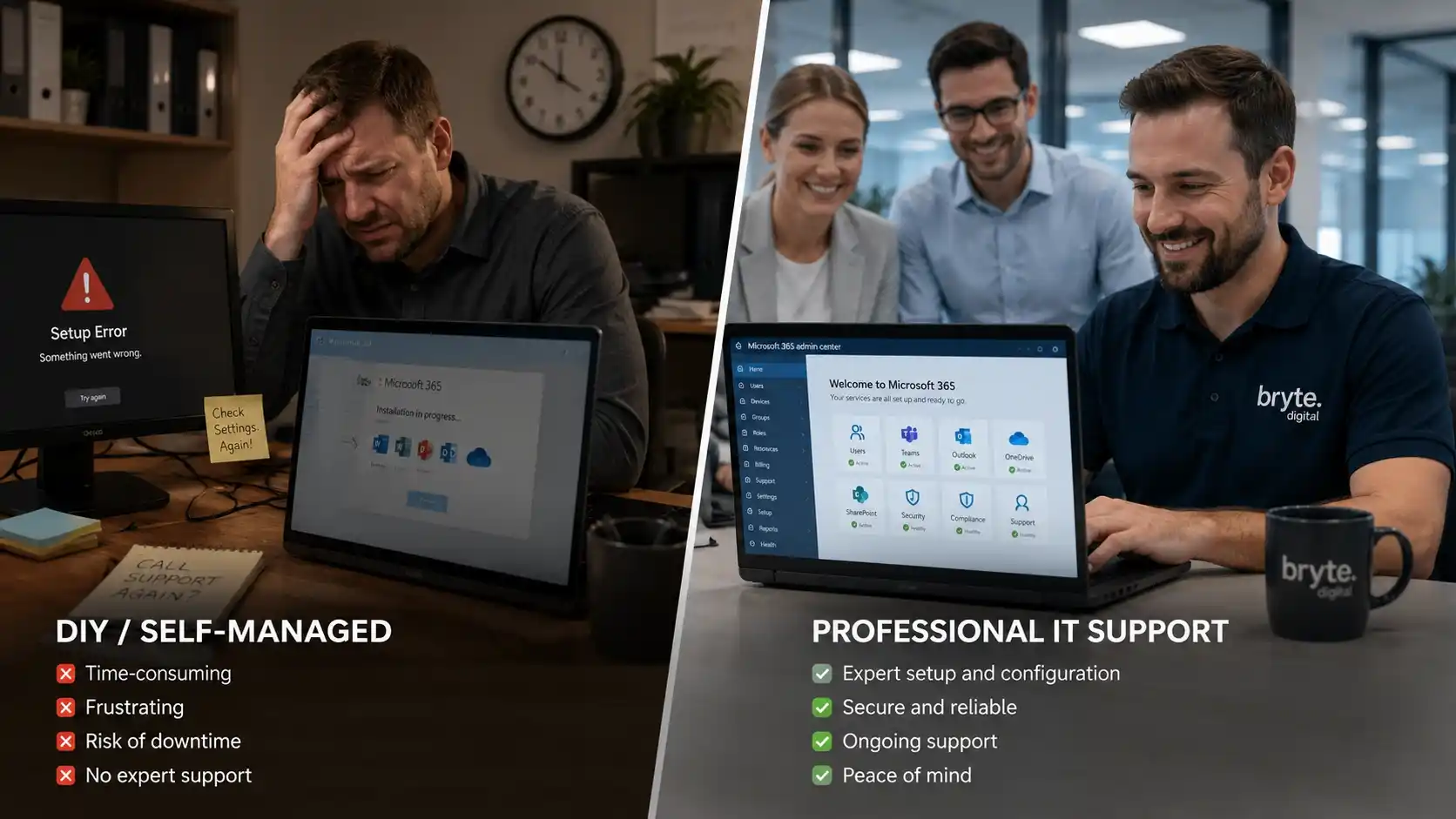
DIY vs Professional Setup in Geelong
Businesses often underestimate the complexity involved.
DIY Setup Works Only When
- Single user
- No domain setup required
- No migration required
Professional Setup Needed When
- Multiple employees
- Email migration required
- Security required
- Downtime must be avoided
| Factor | DIY Setup | Professional Setup |
|---|---|---|
| Time | 1–3 days | 2–6 hours |
| Risk | High | Low |
| Migration | Difficult | Managed safely |
| Security | Basic only | Fully configured |
| Downtime | Likely | Minimal |
Microsoft 365 Services in Geelong
Businesses across Geelong suburbs rely on local IT support for Microsoft 365.

Key Areas Covered
- Belmont
- Highton
- Grovedale
- Newtown
- Waurn Ponds
Common Services
- Email setup
- Teams configuration
- Migration support
- Troubleshooting
- Security setup
Trusted by Geelong Businesses
Real feedback and results from local Microsoft 365 projects.
“No downtime during migration.” — “Email issues fixed within hours.” — “System finally works properly across all devices.”
Accounting Firm (Geelong)
15 users migrated with improved email reliability and reduced admin workload.
Construction Business
Improved site communication and coordination via Microsoft Teams.
Medical Clinic
Improved email security and compliance across the practice.
Frequently Asked Questions
How long does Microsoft 365 setup take?
Usually two to six hours for a full business setup, depending on the number of users and whether migration is involved.
Can emails be migrated safely?
Yes, with a correct backup and staged migration process, emails can be moved without data loss or extended downtime.
Is Microsoft 365 safe for business?
Yes, provided MFA and the core security layers (SPF, DKIM, DMARC, Defender) are properly configured.
Do I need an IT technician?
Recommended for multi-user businesses, especially where migration, security, or minimal downtime are priorities.
What is the cheapest plan?
Business Basic is the lowest cost option, suited to startups and solo operators who mainly need email, Teams, and cloud apps.
Need Help Setting Up Microsoft 365 in Geelong?
Microsoft 365 is the digital backbone of modern businesses in Geelong — but success depends on correct setup, secure configuration, proper migration, and structured file systems.
Our local Microsoft 365 support can help with:
- Tenant creation and domain connection
- Safe email migration from Gmail, cPanel & legacy systems
- MFA, SPF, DKIM & DMARC security configuration
- Shared mailboxes and application deployment
- Ongoing Microsoft 365 support and troubleshooting
For residents and businesses across Geelong — Belmont, Highton, Grovedale, Newtown, and Waurn Ponds — fast local support gets your business running properly the first time.