Outlook Not Sending or Receiving Emails? Your Geelong Fix Guide (2026)
Geelong Fix Guide For Outlook Issues
It’s Monday morning. You’re at your desk on Pakington Street or working from home in Highton. Your coffee’s hot, your laptop’s open — but Outlook is just sitting there doing nothing.
No emails coming in. Nothing going out. And you’ve got clients waiting. Before you throw your laptop out the window, take a breath. This guide walks you through every fix, step by step, in plain English.
Whether you run a small business in Newtown, study at Deakin Uni in Waurn Ponds, or work from home in Belmont, we’ll help you fix:
- Outlook not sending emails
- Outlook not receiving emails
- Emails stuck in the Outbox
- Junk folder & Focused Inbox issues
- SMTP and account settings errors
- Add-ins breaking Outlook
Knowing which problem you actually have saves you 20 minutes of guessing — this guide helps you find it fast.
First, Figure Out Exactly What’s Wrong
Not all Outlook problems are the same. Pick the situation that matches yours and jump straight to the right fix.
Receiving, But Can’t Send
Jump straight to the sending fixes further down this guide.
Sending, But Not Receiving
Go straight to the receiving fixes — that’s the section you need.
Outlook Doing Nothing At All
Start with the basic checks below — that’s the right place to begin.
Is Outlook Having Issues Right Now?
Sometimes it isn’t your computer at all — Microsoft’s servers go down too. Checking this takes 30 seconds.
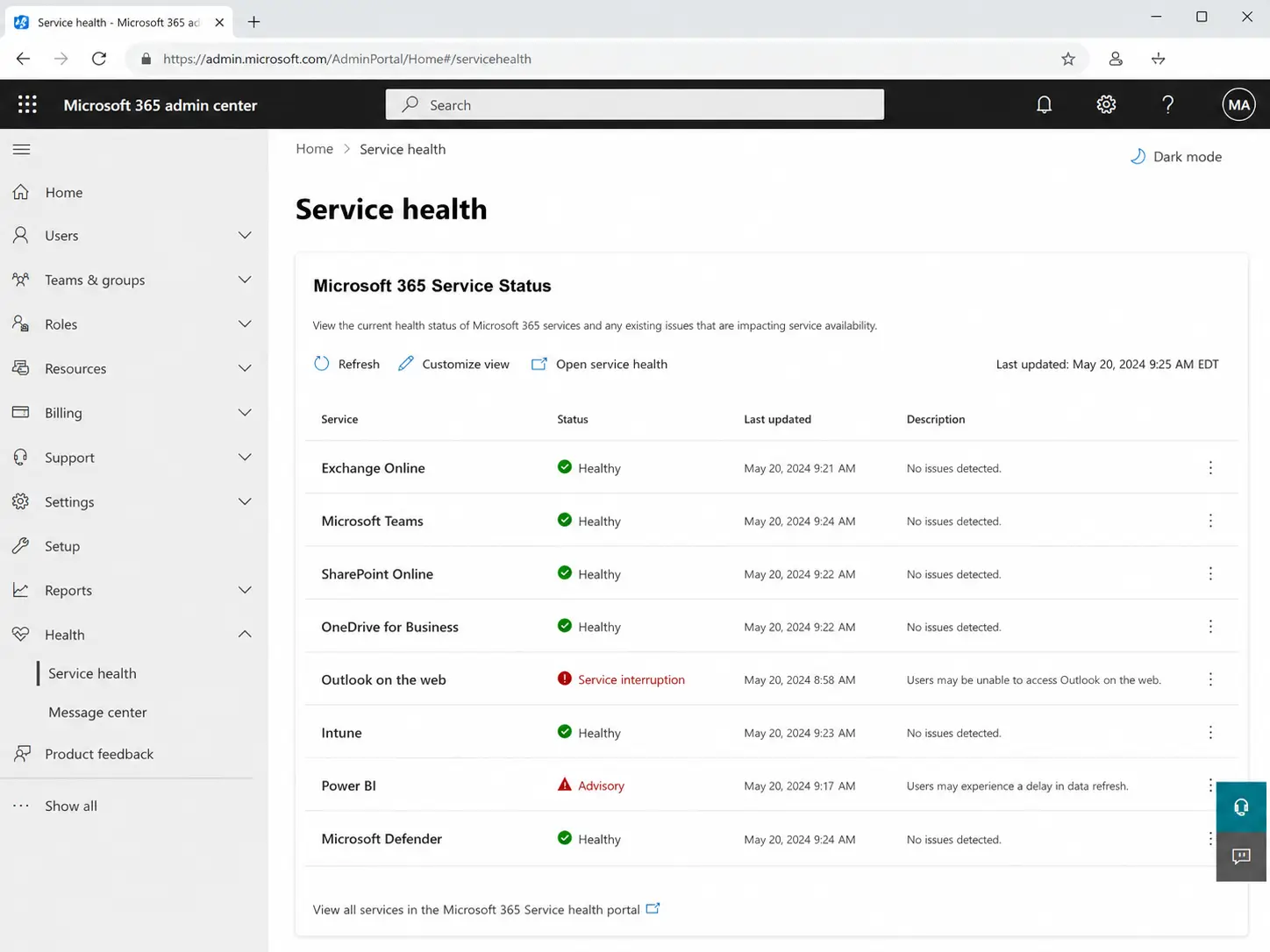
It happens to everyone — from Moorabool Street offices to home setups in Grovedale. Go to Microsoft’s official service status page. If you see red or yellow indicators next to Exchange or Outlook, that’s your answer — wait it out. Nothing on your end will fix a Microsoft server problem.
You can also check downdetector.com.au for real-time Outlook outage reports from other Australians. Server-side outages like these typically affect large numbers of users at once and resolve automatically once Microsoft patches the issue.
So before you spend an hour troubleshooting, check the server status first.
Three Quick Checks That Fix Most Problems
Most Outlook issues come down to one of three things. Check these before anything else.
1. Check Your Internet
Open your browser and try loading any website. If that doesn’t load either, it’s your internet, not Outlook. NBN dropouts are common across Geelong, especially after storms through the Surf Coast — restart your router and try again.
2. Turn Off Work Offline
Look at the bottom of your Outlook window. If it says “Working Offline,” that’s your problem. Go to the Send / Receive tab and click Work Offline to turn it off. Emails should start flowing within seconds.
3. Restart Everything
Sounds too simple, but it works more often than you’d think. Fully close Outlook (don’t just minimise it), restart your computer, then try Outlook again.
Why Have I Suddenly Stopped Receiving Emails?
This is one of the most common questions people ask on Reddit and Quora. There are six main reasons it happens.
| Reason | How Common | Quick Fix |
|---|---|---|
| Junk folder catching real emails | Very Common | Check junk, mark as Not Junk |
| Focused Inbox “Other” tab hiding emails | Very Common | Switch to Other tab or disable Focused Inbox |
| An email rule moving emails | Common | Turn off all rules, test, re-enable one by one |
| Mailbox storage full | Common | Empty Deleted Items, clear Sent folder |
| Sender accidentally blocked | Less Common | Check Blocked Senders list |
| Corrupt Outlook profile | Less Common | Repair or recreate profile |
We’ll fix each one below, starting with the most common and working down.
How to Fix Outlook Not Receiving Emails
Work through these in order — most people find the cause in the first two or three fixes.
Fix 1: Check Your Junk Folder
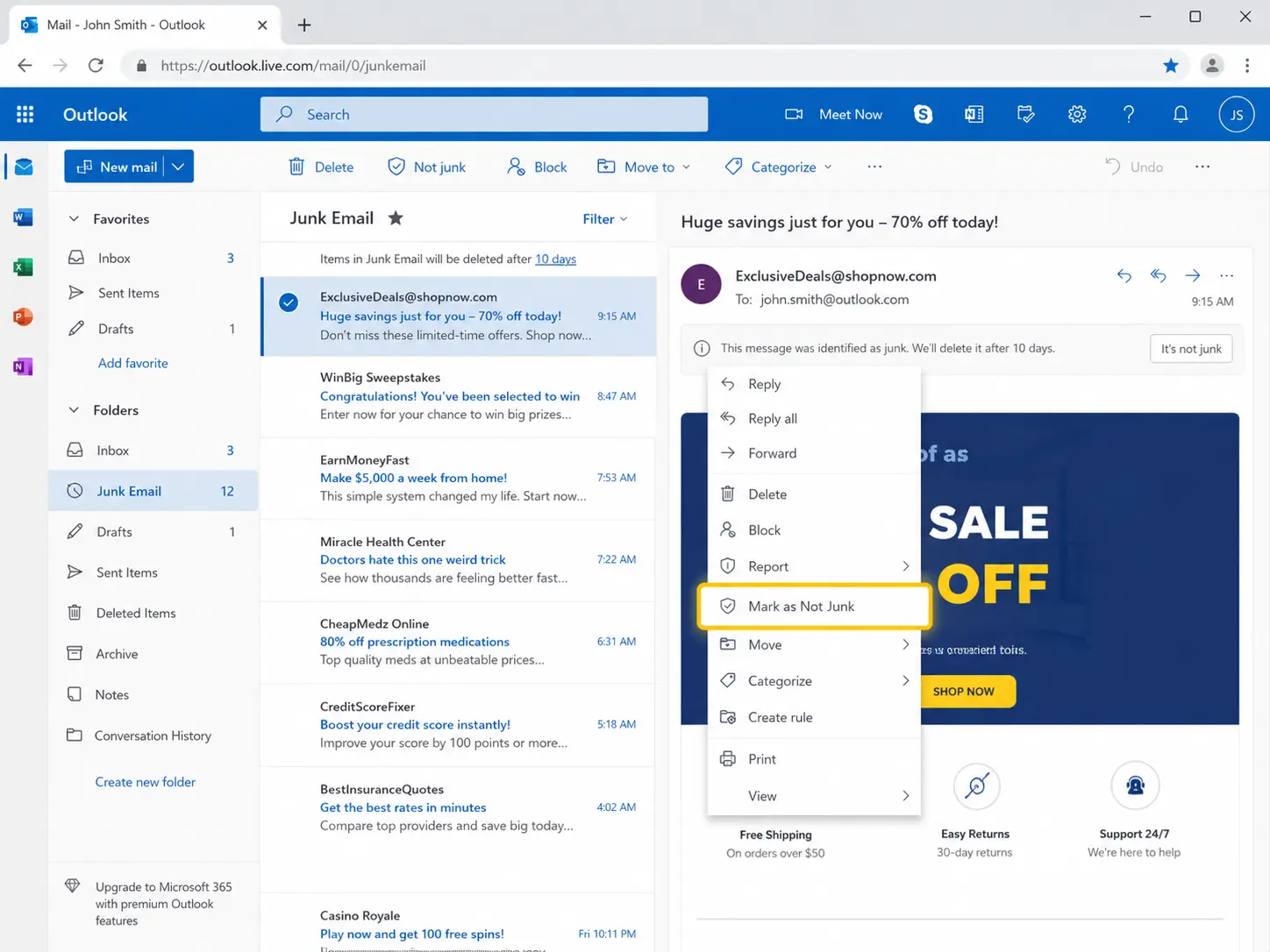
Open Outlook, find the Junk Email folder in the left sidebar, and look through it carefully. Legitimate emails land there more often than you’d expect, especially from new contacts or businesses.
If you find a real email, right-click it and select “Mark as Not Junk,” then add that sender to your Safe Senders list. Microsoft’s own support page confirms overly aggressive spam filters are one of the top causes of missing emails.
Fix 2: Check the “Other” Tab
Focused Inbox splits your inbox into Focused and Other tabs. The Focused tab shows emails Microsoft thinks are important — everything else lands in Other, and Outlook often gets it wrong.
Click the Other tab right now and have a look. To turn Focused Inbox off completely, go to the View tab and click Show Focused Inbox to toggle it off.
Fix 3: Check Your Email Rules
Email rules can silently move or delete incoming emails without you knowing. Go to File, then Manage Rules and Alerts, and turn them all off temporarily.
Send yourself a test email from another address, like your Gmail. If it arrives normally, one of your rules was the problem — turn them back on one at a time to find the culprit.
Fix 4: Check Blocked Senders
Sometimes a sender gets blocked by accident — maybe the wrong button was clicked, or Outlook did it automatically.
Go to Home, then Junk, then Junk Email Options, and click the Blocked Senders tab. Remove any contact or domain that shouldn’t be there, then ask that person to email you again.
Fix 5: Check If Your Mailbox Is Full
Microsoft 365 accounts come with 50GB to 100GB of storage. When it fills up, new emails bounce back to the sender without you knowing.
Check your storage at outlook.com under Settings, then View all Outlook settings. Empty Deleted Items, clear Sent, and move old attachments to OneDrive to free up space fast.
How to Fix Outlook Not Sending Emails
If receiving is fine but nothing goes out, the cause usually sits in one of four places.
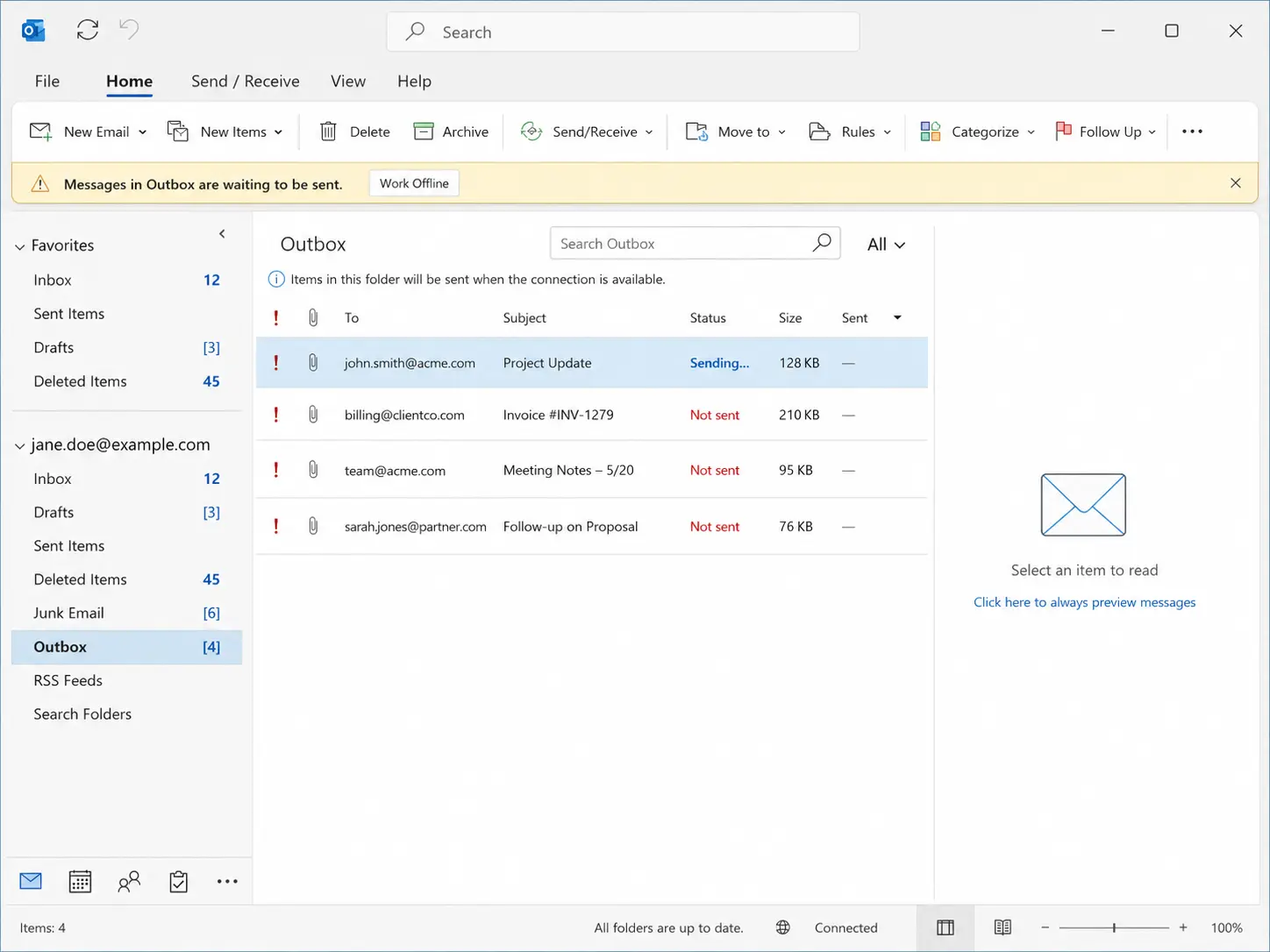
Fix 1: Clear Stuck Outbox Emails
Open your Outbox. If emails sit there with a status of “Sending,” they’re stuck — usually caused by a large attachment timing out and freezing everything behind it.
Delete or move the stuck email to Drafts, then try a simple test email with no attachment. If that goes through, compress the file or share it via a OneDrive link instead.
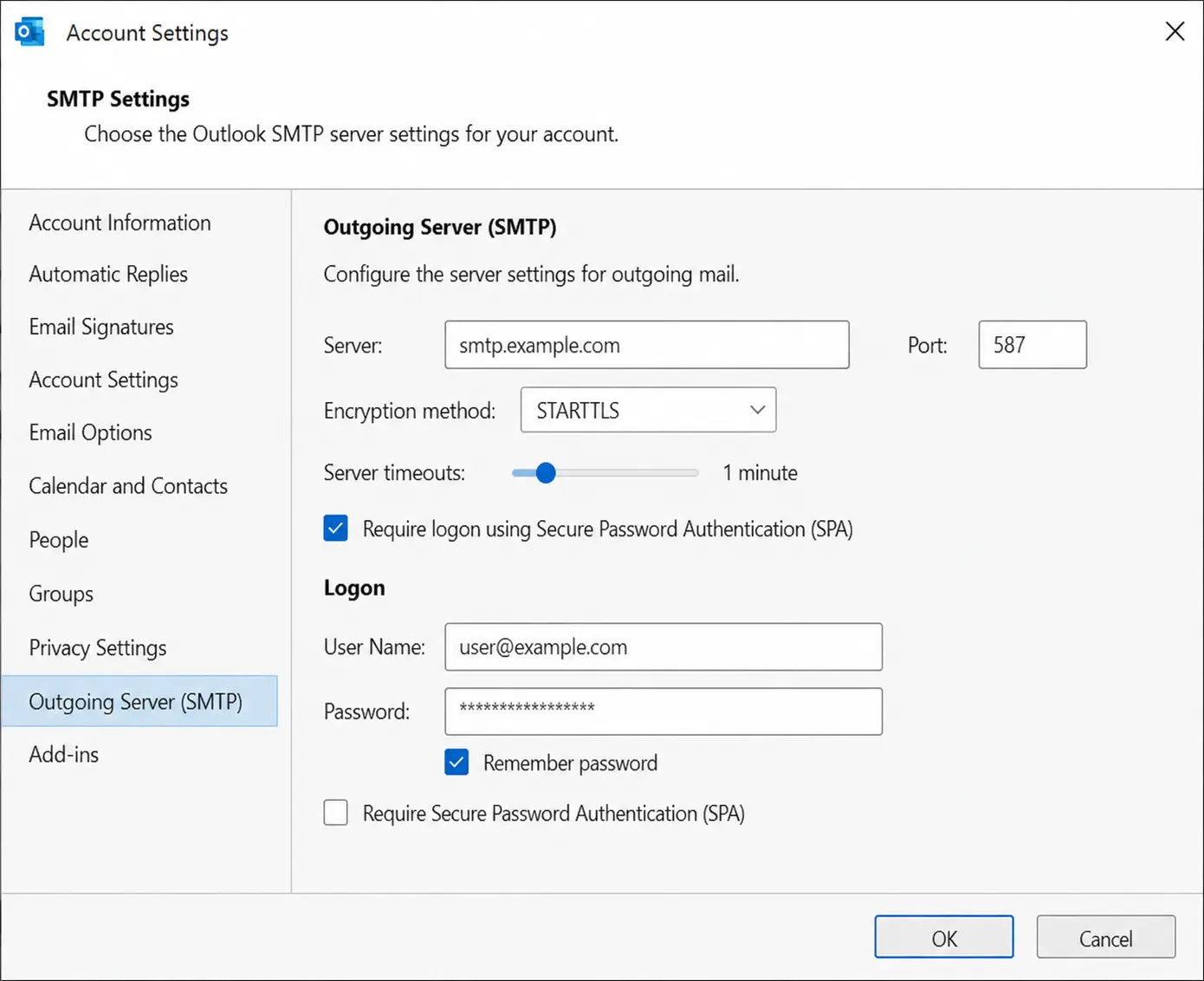
Fix 2: Check Your SMTP Settings
SMTP is the technical name for your outgoing mail server. If the settings are wrong, your emails go nowhere — especially common when setting up a new account for a Geelong business on a custom domain.
Find these settings in File, then Account Settings, select your account, and click Change.
Correct SMTP Settings
If you’re not sure what settings your provider needs, ring them directly or check their support page. For most setups, these are the correct values:
| Account Type | Outgoing Server | Port | Encryption |
|---|---|---|---|
| Microsoft 365 | smtp.office365.com | 587 | STARTTLS |
| Gmail (connected to Outlook) | smtp.gmail.com | 587 | TLS |
Fix 3: Disable Your Add-ins
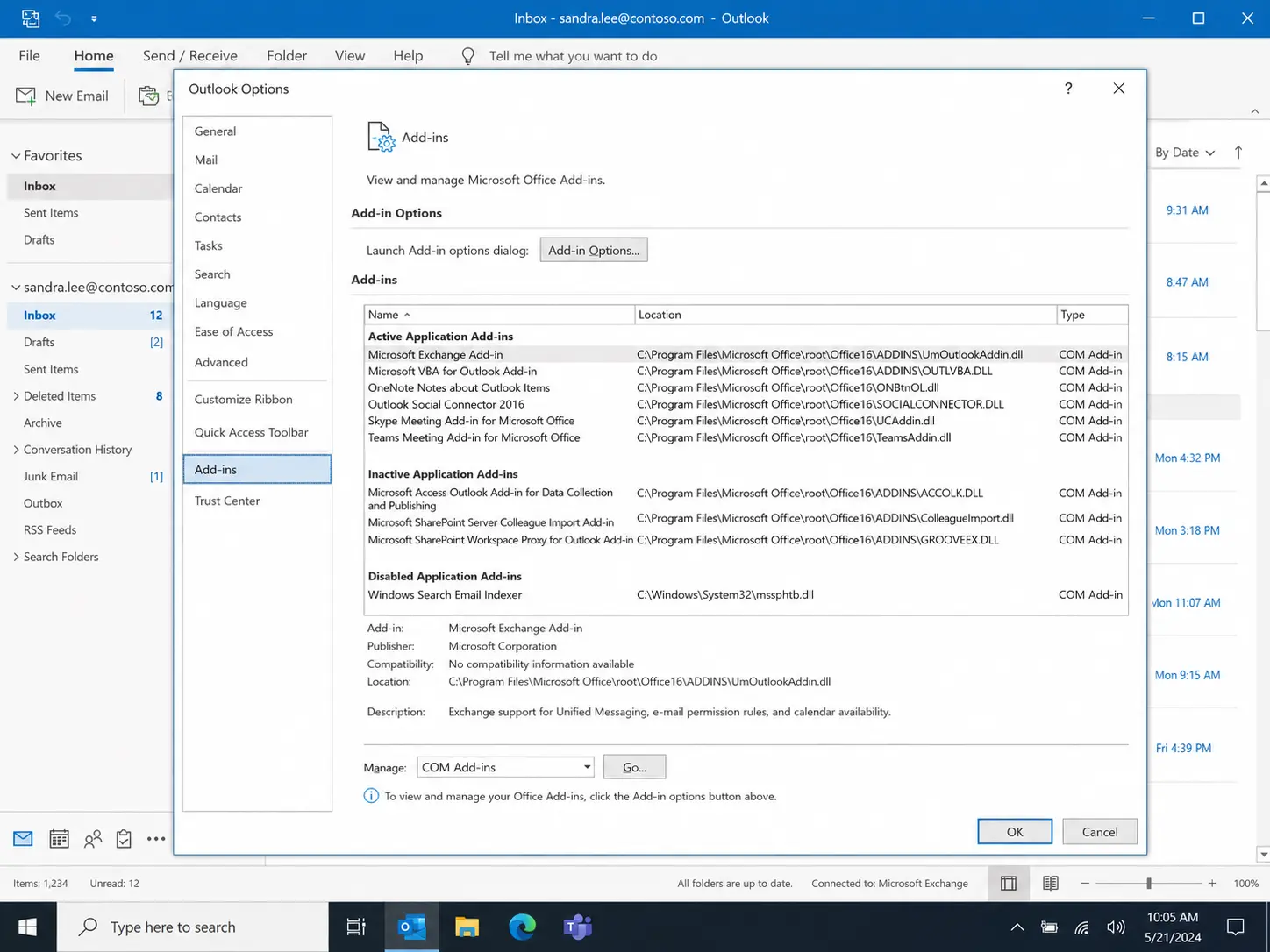
Third-party add-ins sometimes break Outlook’s ability to send. Common culprits include Grammarly, Zoom, McAfee, and certain antivirus tools.
To test, hold Windows and press R, type outlook.exe /safe, and press Enter. If sending works in safe mode, go to File, then Options, then Add-ins, and disable them one by one to find the cause.
Fix 4: Check Antivirus & Firewall
Your antivirus or firewall can block Outlook from connecting to the mail server. Temporarily turn it off and try sending again — if that works, add Outlook as a trusted app.
For Windows Defender Firewall: Control Panel, then Windows Defender Firewall, then Allow an app through the firewall, and make sure Outlook is ticked. Norton, McAfee, and AVG have similar options.
Still Not Working After Trying Everything?
If you’ve worked through every fix above, the issue is likely a corrupted profile or a deeper system problem.
Repair Your Outlook Profile
Go to File, then Account Settings, select your email account, and click Repair. Outlook runs through a repair process automatically — this takes around five minutes.
If repair doesn’t work, create a brand new profile via Control Panel, then Mail, then Show Profiles, then Add. Your old emails stay safe; this just creates a fresh connection to the server.
Reset Your Outlook Email
Resetting means removing your account and adding it back fresh. Go to File, then Account Settings, select your account, and click Remove.
Then click New and walk through setup again with your email address and password. This fixes most persistent problems that nothing else could solve.
Still Stuck? We Come to You — Anywhere in Geelong
Some problems go beyond what a how-to guide can fix, and that’s where local, onsite help makes the difference.
When DIY Isn’t Enough
If Outlook stopped working after a Windows update, or you’re setting up business email with a custom domain on Belmont’s Shannon Avenue or a shopfront on Moorabool Street, that’s not a DIY job.
Computer Repair Mate covers all of Geelong — Belmont, Highton, Newtown, Grovedale, Waurn Ponds, and Lara. We come to your home or office, same day, with no jargon and no hidden fees.
Email Setup Done Properly
We set up email accounts properly the first time, including SPF, DKIM, and DMARC records that stop your emails landing in spam — something most people never even know about until their emails stop arriving.
For accounts affected by a security incident, our email password recovery in Geelong service can also help.
Quick Answers to Common Questions
Why have I suddenly stopped receiving emails in Outlook?
The most common reasons are a full mailbox, a rule moving emails, the Focused Inbox Other tab, or a blocked sender. Work through the fixes above in that order.
Is Outlook having issues right now in Australia?
Check microsoft.com/en-au/microsoft-365/status for live server status. Downdetector.com.au also shows real-time reports from Australian users.
How do I force Outlook to check for new emails?
Press F9 on your keyboard, or click the Send / Receive All Folders button in the Send / Receive tab. On mobile, pull down on your inbox to refresh.
How long does it usually take to fix Outlook?
Most fixes take two to five minutes. A profile repair takes around ten minutes. If it’s a Microsoft server outage, you just wait — it usually resolves within a few hours.
Can I recover emails that disappeared from Outlook?
Yes, if they disappeared recently. Check the Deleted Items folder first, then Recover Deleted Items from the Folder tab. Deleted emails are usually recoverable for up to 30 days on most plans.
Need Help Fixing Outlook in Geelong?
Email problems happen more often than people think. The important thing is working through the fixes in order — and knowing when it’s time to call in local help.
Whether the issue is Outlook not sending, Outlook not receiving, a stuck Outbox, SMTP errors, add-in conflicts, or a deeper account problem, our local team can usually sort it without wiping anything.
Our local Outlook support can help with:
- Outlook sending and receiving problems
- SMTP and account settings configuration
- Business email setup with SPF, DKIM & DMARC
- Add-in and antivirus conflict troubleshooting
- Outlook profile repair and reset
For residents and businesses across Geelong, fast local support can often get your inbox working again the same day.