
PC Freezes or Crashes Randomly: Causes, Fixes & Local Help in Geelong
A freezing or crashing PC is frustrating.
It stops work without warning.
Many users across Geelong, from Belmont to Waurn Ponds, face this issue daily.The good news?
PC freezes are not random.
There is always a root cause.This guide explains why your PC freezes, what you can safely fix, and when local professional help is needed. Or If you tried and unable to fix, don’t worry! We are here to offer IT support, Virus removal and OS Installation services.
Search Your Problem
What Does It Mean When a Computer Freezes?
A computer freeze happens when the system stops responding.
The screen stays on, but nothing works properly. Mouse clicks lag. Keyboard input fails. Programs stop responding.Unlike a crash, the PC does not restart. It simply gets stuck.
This usually points to stress on hardware or system resources.

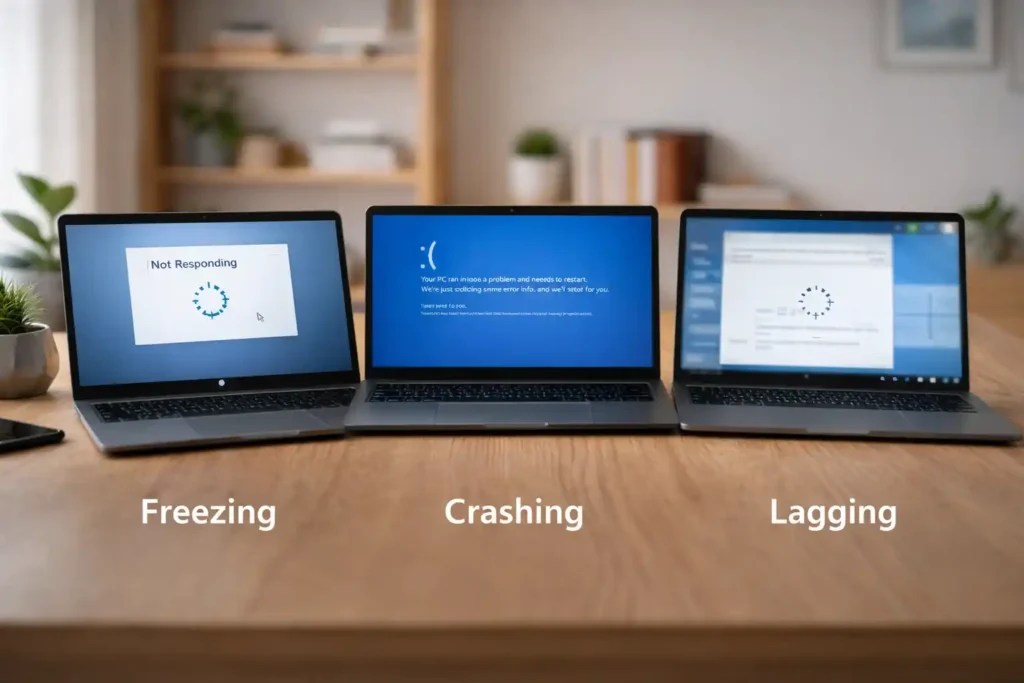
Freezing vs Crashing vs Lagging
Many users confuse these terms.
- Freezing means the system becomes unresponsive
- Crashing means Windows shuts down or restarts
- Lagging means the system is slow but still works
Each issue has different causes and fixes.
When Does Your PC Freeze? Timing Matters
Freezes During Startup
If your PC freezes while booting, the problem often runs deep.
It may involve storage errors, corrupt drivers, or Windows startup conflicts.
This is common on older systems in Grovedale and Norlane.
Random Freezing During Normal Use
Random freezes usually point to background problems.
Overheating, failing drives, or software conflicts are common triggers.
Many home PCs near Geelong CBD show this pattern.
Freezing While Multitasking or Gaming
If freezing happens under heavy load, hardware limits are likely.
Low RAM, GPU stress, or poor cooling are common causes.
Gaming PCs in Highton often face this issue.
Most Common Causes of PC Freezing
Low or Insufficient RAM
RAM handles active tasks.
When it fills up, Windows struggles to keep up.
Browsers, video calls, and design apps consume RAM quickly.Low memory often causes slowdowns before full freezes.
Overheating Computer
Heat builds up silently inside the PC.
Dust blocks airflow. Fans slow down. Temperatures rise fast.
When CPUs overheat, they reduce performance to protect themselves.This causes sudden freezes, especially under load.
Outdated or Corrupted Drivers
Drivers allow hardware to work with Windows.
When drivers fail, the system becomes unstable.
Graphics drivers are the most common cause of freezing.Microsoft confirms unstable drivers cause system hangs.
Operating System Errors
If system files are heavily damaged, professional Windows installation and operating system repair may be required
Hardware or Power Supply Failure
Unstable power causes random system behavior.
Weak power supplies and aging motherboards are common culprits.
This is often seen in older desktop systems.
External Devices Causing Freezes
Faulty USB devices can freeze Windows instantly.
Printers, webcams, and external drives are common triggers.
Disconnecting devices helps isolate the problem.
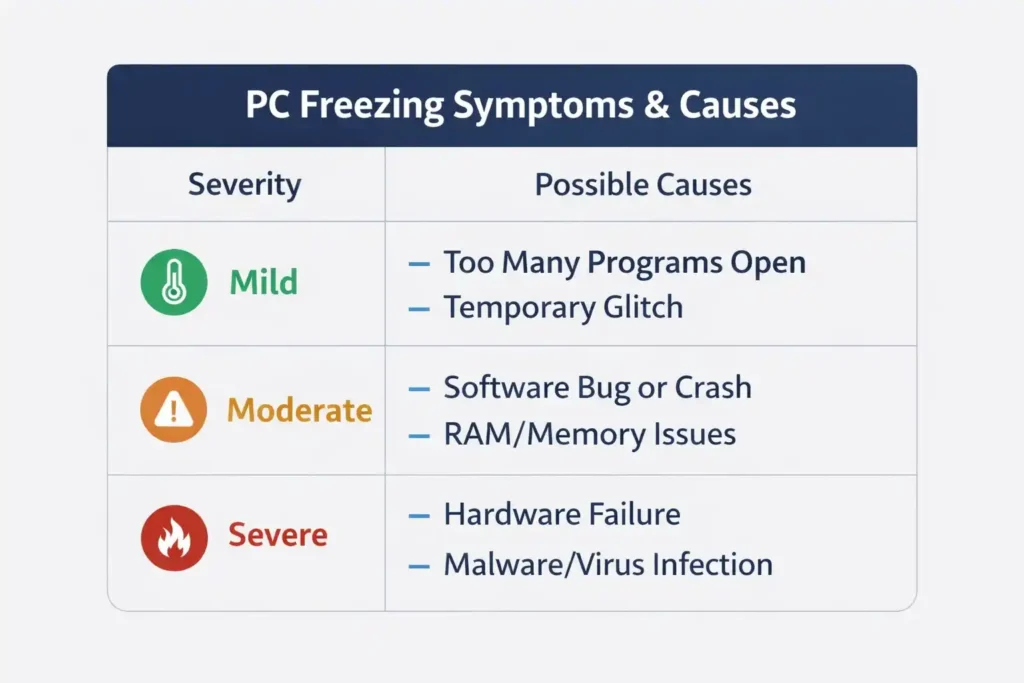
Freeze Symptoms and Likely Causes
| Symptom | Likely Cause | Severity |
| Freezes on startup | Storage or driver issue | Medium |
| Freezes during gaming | Overheating or RAM | High |
| Random pauses | Software conflict | Low–Medium |
| Full lockups | Hardware failure | High |
| Freezes with USB device | Faulty peripheral | Low |
How to Fix a PC That Keeps Freezing
Restart and Observe
Restart the PC and carefully note the exact moment when the freezing issue begins during startup or regular use for easier troubleshooting later.
Check Task Manager
Look for high CPU, memory, or disk usage.
Constant high usage often causes freezing.
If Task Manager won’t open, the issue is serious.
Update Windows and Drivers
Updates fix bugs and stability issues.
Always update graphics and chipset drivers first.
Many freezes disappear after updates. Check Windows 11 update problems in Geelong
Run System File Checker
SFC scans and repairs Windows system files.
It fixes corruption caused by bad updates or shutdowns.
You can learn how to run the Microsoft System File Checker tool.
Run CHKDSK
CHKDSK checks storage health.
It detects bad sectors and file errors.
Storage issues are a major freeze cause.
Scan for Malware
Use trusted security software only.
Avoid unknown “PC cleaner” tools.
Malware often hides behind freezing symptoms.
Improve Cooling
Clean dust from vents and fans.
Ensure proper airflow around the PC.
Cooling fixes many unexplained freezes.
Disconnect External Devices
Test the system with only keyboard and mouse connected.
Reconnect devices one by one.
This helps identify faulty hardware.
Freezing vs Crashing: Should You Worry?
Freezing is often an early warning sign.
If ignored, it can lead to crashes or data loss.
Repeated freezing should never be dismissed.
Freezing vs Crashing vs Lagging
| Issue | Behavior | Cause | Action |
| Freezing | No response | Heat, RAM, storage | Diagnose early |
| Crashing | Restart/BSOD | Drivers, hardware | Immediate fix |
| Lagging | Slow system | High usage | Optimize |
How to Prevent PC Freezing Long-Term
Prevention saves money and data.
- Keep drivers updated
- Clean dust every 6–12 months
- Avoid overloading the system
- Use reliable security software
- Upgrade RAM or storage when needed
Simple upgrades often restore stability.
When to Call a Local Technician in Geelong
Stop DIY troubleshooting if:
- Freezing happens daily
- Data feels at risk
- Startup freezes persist
- Hardware replacement is likely
Local support saves time and prevents mistakes.
Local Case Study (Geelong)
A home office near Belmont High Street froze every morning.
The cause was a failing hard drive and heavy dust buildup.
After replacing the drive and cleaning the system, freezing stopped completely.
Final Takeaway
PC freezing is a warning, not a mystery.
Fixing the root cause early prevents crashes and data loss.
If you need trusted computer repair service in Geelong, expert diagnosis makes the difference. Check out our all services here: computer repair Geelong.