Blue Screen of Death (BSOD) Solutions
A Blue Screen of Death (BSOD) can appear without warning, interrupting work, causing data anxiety, and forcing sudden restarts. This guide walks you through practical, step-by-step methods to identify the cause, apply safe fixes, and understand when professional help is the smarter move, our computer repair services in Geelong can quickly diagnose BSOD causes and prevent future crashes. Learn how to diagnose common errors, protect your system, and prevent future crashes with clear, reliable solutions designed for everyday users and local Geelong homes and offices. Or you can take our System / OS Installation, Data Recovery and IT Support services.
Search Your Problem
Step-by-Step Fixes & When to Call a Local Geelong Computer Repair Pro
A Blue Screen of Death (BSOD) can stop everything in seconds.
Your screen turns blue. Work disappears. The system restarts without warning.
For homes and businesses across Geelong, this is more than annoying.
Students near Deakin University Waurn Ponds, offices around Malop Street, and home users in Belmont depend on stable computers every day.
The good news is simple.
Most BSOD issues are diagnosable, fixable, and preventable.Just contact here to Desktop repair Geelong.
This guide explains:
- Why BSOD happens
- What you can safely fix yourself
- When professional help is the smarter move
No fluff. No scare tactics. Just clear solutions.
What Is the Blue Screen of Death (BSOD)?
A Blue Screen of Death is a Windows safety shutdown.
Windows stops running when it detects a critical error.
This protects your system from:
- Data corruption
- Hardware damage
- Permanent system failure
Windows displays Windows stop error codes to explain what went wrong.
Microsoft calls this a Windows stop error or bug check.These crashes affect Windows 10 and Windows 11 systems equally.
Why BSOD Happens So Often in Geelong Homes and Offices
Location matters more than people think.
In Geelong, many systems face:
- Dust from coastal air
- Long-running laptops with poor airflow
- Older desktops still in daily use
We commonly see BSOD cases from Grovedale, Highton, and Newtown caused by simple, fixable issues.
The most common causes of BSOD
- Driver problems after Windows updates
- Faulty RAM in aging systems
- Disk errors on HDDs and older SSDs
- Overheating CPUs due to blocked vents
- Software conflicts from free utilities
- Operating system corruption
HP and Dell both confirm drivers and memory faults cause most crashes.
Common BSOD Causes & Fixes
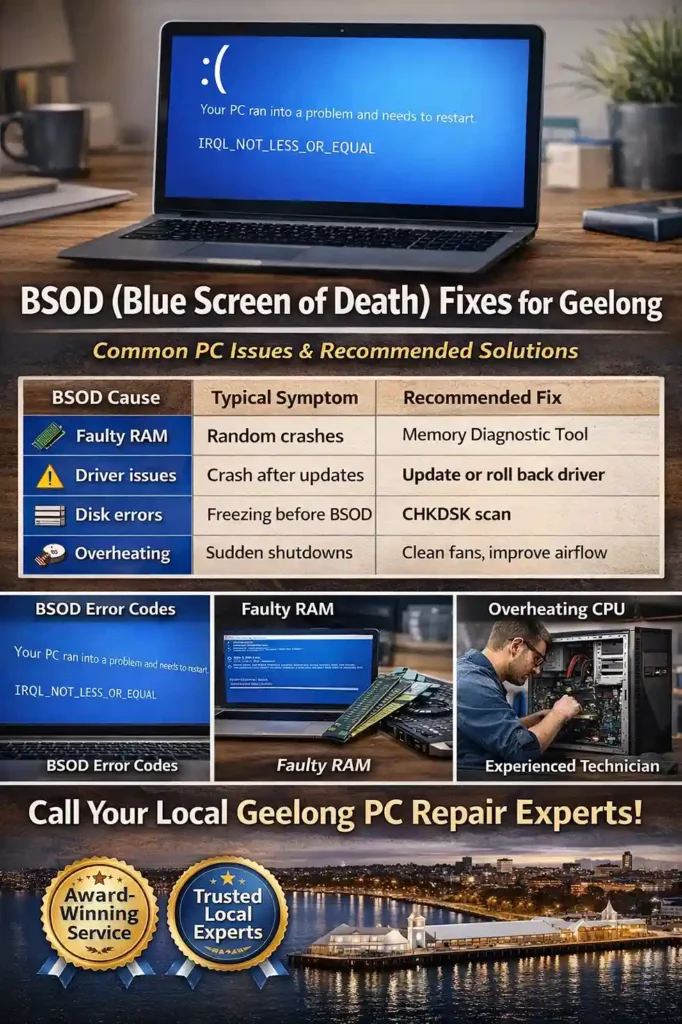
| BSOD Cause | Typical Symptom | Recommended Fix |
| Faulty RAM | Random crashes | Memory Diagnostic Tool |
| Driver issues | Crash after updates | Update or roll back driver |
| Disk errors | Freezing before BSOD | CHKDSK scan |
| Overheating | Sudden shutdowns | Clean fans, improve airflow |
Step-by-Step BSOD Fixes You Can Try Safely
These steps are safe for home users.
Stop if anything feels unclear.
Step 1: Record the Error Code
Take a photo of the blue screen.
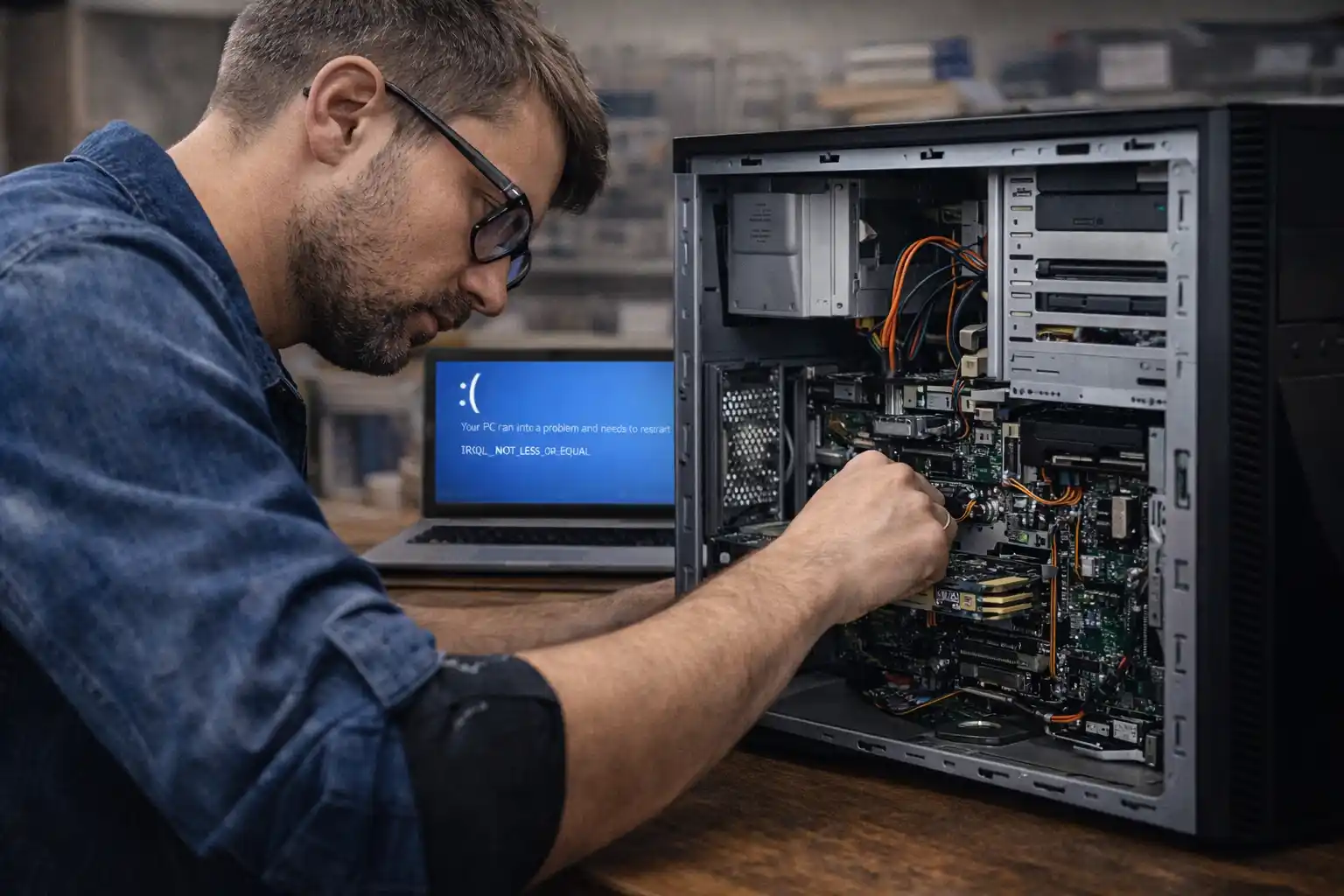
Codes like IRQL_NOT_LESS_OR_EQUAL matter later.
Step 2: Disconnect External Devices
Unplug USB drives, printers, webcams, and docks.
Restart the computer.Faulty peripherals often trigger crashes.
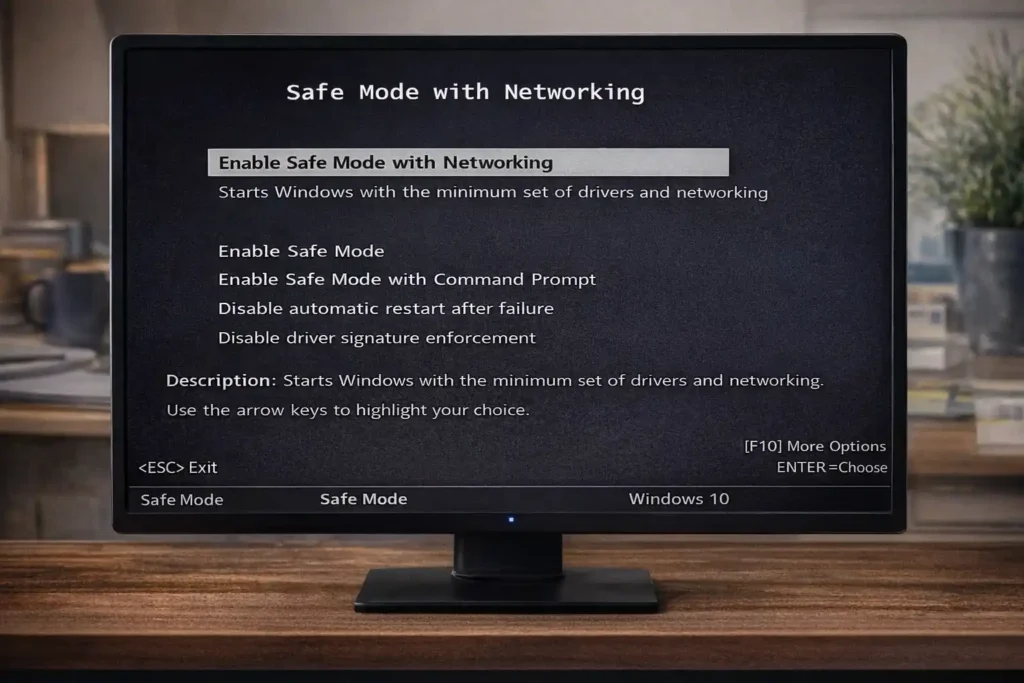
Step 3: Boot into Safe Mode
Use Safe Mode with Networking.
Windows loads only essential drivers here.If BSOD stops, a driver or app is the cause.
Fix Driver and Windows System Issues
Drivers are the top BSOD trigger.
Update or Roll Back Drivers
Focus on:
- Graphics drivers
- Storage controllers
- Network adapters
Avoid third-party driver tools.
They often install incompatible versions.
Run System File Checker (SFC)
SFC scans Windows system files for corruption.
Microsoft recommends this for crash recovery.
Scan for Disk and File Errors
Disk errors cause random crashes.
Check for Windows Updates
Some updates fix BSOD bugs.
Others cause them.
If crashes started after an update, roll it back.
Run CHKDSK Hard Drive Scan
This finds bad sectors and file system damage.Older laptops around Pakington Street cafés often crash due to worn drives.
Watch for Warning Signs
- Slow boot times
- Clicking sounds
- Freezing before BSOD
These often point to storage failure.
Hardware Checks That Prevent Repeat BSODs
Hardware issues cause unpredictable crashes.
Test Your RAM
Use Windows Memory Diagnostic Tool.
Faulty RAM is common after 3–5 years.
Check CPU and GPU Temperatures
Overheating shuts systems down fast.We see this often in homes near Barwon River, where dust builds up inside cases.Dell confirms overheating causes stop errors.
Common BSOD Error Codes Explained Clearly
Stop codes are clues, not guesses.
- CRITICAL_PROCESS_DIED
Core Windows files failed - IRQL_NOT_LESS_OR_EQUAL
Driver accessed invalid memory - MEMORY_MANAGEMENT
RAM failure or corruption - INACCESSIBLE_BOOT_DEVICE
Storage or driver issue
Each code narrows the troubleshooting path.
BSOD Error Codes Explained
| Stop Code | Meaning | Likely Cause |
| CRITICAL_PROCESS_DIED | System file failure | Corruption or malware |
| IRQL_NOT_LESS_OR_EQUAL | Driver memory error | Incompatible driver |
| MEMORY_MANAGEMENT | RAM failure | Faulty or mismatched RAM |
| INACCESSIBLE_BOOT_DEVICE | Boot failure | Storage driver issue |
Advanced Troubleshooting (Use With Caution)
If crashes continue, deeper checks are needed.
Minidump File Analysis
Minidump files record crash data.
Professionals use them to identify failing drivers.
BIOS Update
Only update BIOS if required.
Incorrect updates can brick systems.
System Restore
Restores Windows to a stable state.
Reinstall Windows (Last Resort)
Only after hardware tests pass.
When to Call a Local Geelong Computer Repair Expert
Stop DIY fixes if:
- The system won’t boot
- BSOD happens daily
- Error codes keep changing
- Business files are at risk
Local technicians near Geelong CBD can:
- Test hardware properly
- Analyze dump files
- Fix issues faster
This saves time and prevents data loss.
DIY vs Professional Help
| Situation | DIY Safe? | Call a Pro |
| One-time BSOD | Yes | No |
| Daily crashes | No | Yes |
| Hardware errors | No | Yes |
| Business data risk | No | Yes |
Real Local Case Study
| Location | Belmont |
| Problem | BSOD during video meetings |
| Cause | Faulty RAM stick |
| Fix | RAM replacement |
| Result | Stable system for 8+ months. |
What Geelong Clients Say
“Clear explanation and quick fix.”
“No upselling, just honest advice.”
“My PC hasn’t crashed since.”
Trust matters in local repair.

Awards and Professional Recognition
- Trusted local service provider
- Experience with Windows 10 and 11
- Proven diagnostic workflow
- High repeat customer rate
Professional diagnostics reduce guesswork.
How to Prevent BSOD Long Term
Prevention costs less than repair.
- Keep drivers updated
- Avoid unknown software
- Clean fans yearly
- Use antivirus protection
- Back up files regularly
Preventive maintenance improves system stability.
Final Thoughts
A BSOD is a warning, not a death sentence.
Most crashes have clear causes.Simple steps fix many cases.
Local expertise solves the rest.If you’re in Geelong, fast local help beats guesswork every time.