Laptop Overheating Problems in Geelong — Fixing Fans, Cooling & Dust Build-Up Properly
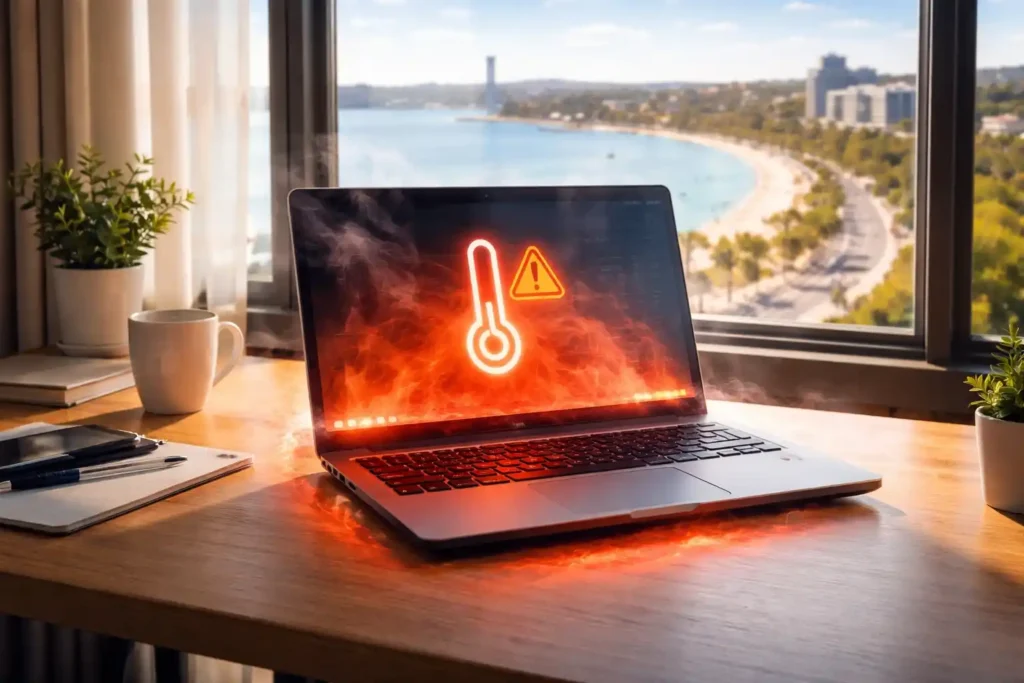
Laptop overheating is one of the most common problems faced by computer users in Geelong, whether you are a student at Deakin University, a home office worker in Belmont, or a business owner in Moorabool Street. When your laptop gets too hot, it can cause serious damage to critical components such as the CPU, GPU, and battery. Overheating may also reduce your laptop’s performance, slow down your programs, or even cause unexpected shutdowns. Many users are unaware of the main reasons behind this issue, including dust accumulation, blocked vents, failing cooling fans, and excessive workload from heavy applications. Environmental factors in Geelong, such as high summer temperatures, coastal dust near Eastern Beach, and working on soft surfaces at home, can further worsen the problem. Understanding why laptops overheat and learning how to prevent or fix it is essential for protecting your device, maintaining its lifespan, and ensuring smooth day-to-day computing.If you’re experiencing frequent shutdowns, our Computer Repairs Geelong team provides same-day diagnostics and hardware solutions.
Fact: Modern CPUs throttle at ~95°C according to Intel thermal guidelines.
Search Your Problem
Why Is My Laptop Overheating?
Laptops overheat when heat produced by internal components exceeds cooling capacity.
Common causes include:
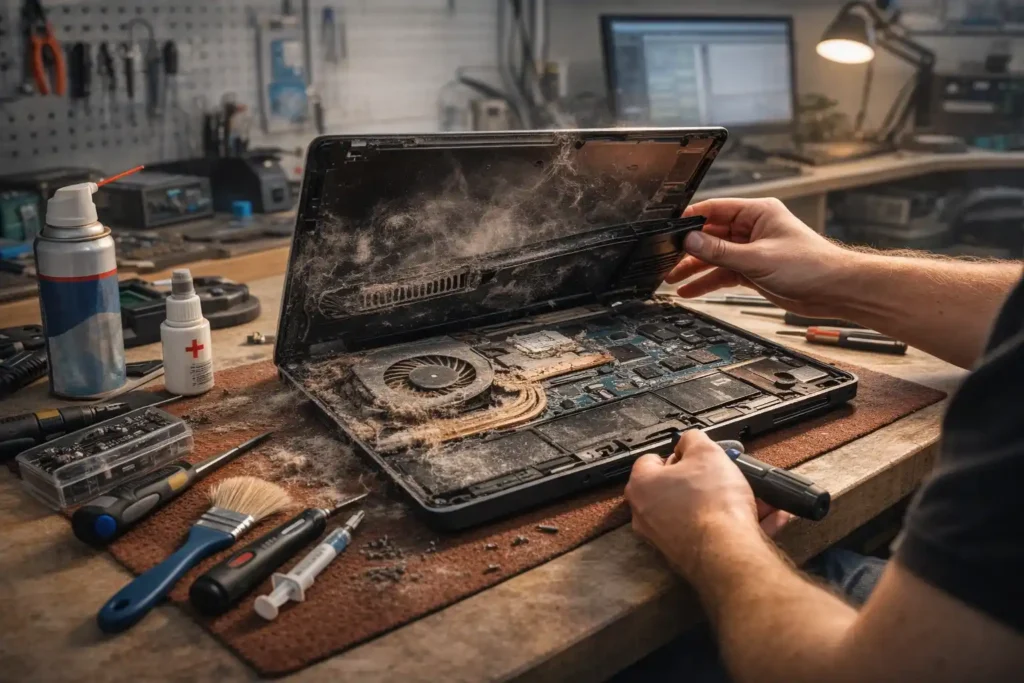
- Dust buildup blocking air vents
- Failing cooling fans
- Dried or old thermal paste
- Heavy background programs
- High ambient temperatures during Geelong summers
CPU & GPU Safe Temperature Table
| Component | Normal Temp | High Temp | Danger Temp |
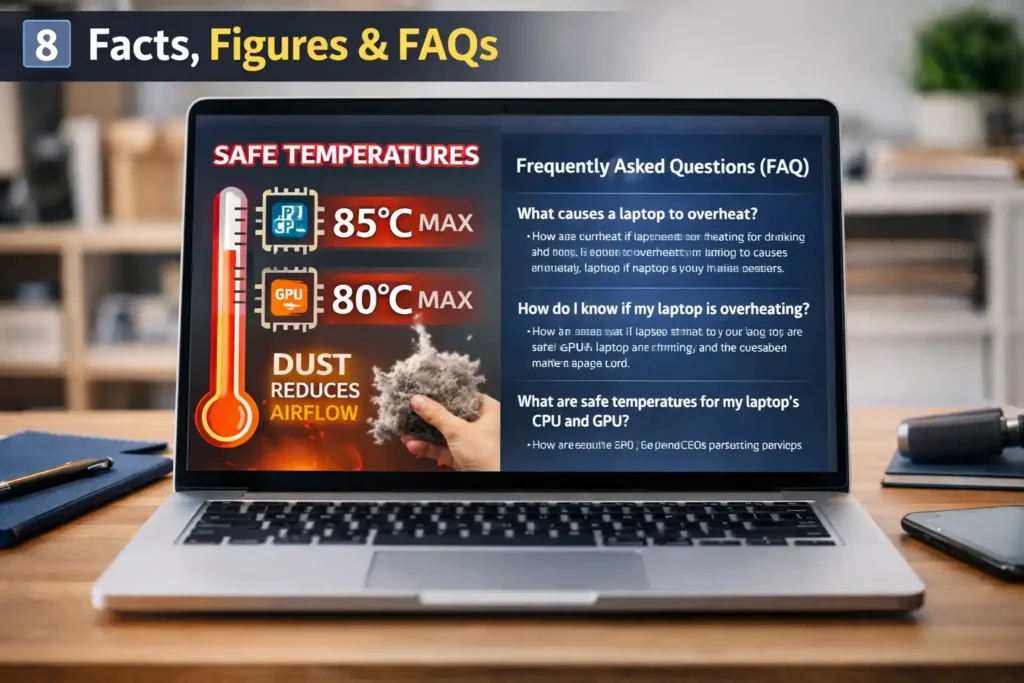
| CPU | 40–70°C | 70–85°C | 85–95°C |
| GPU | 40–75°C | 75–85°C | 85–95°C |
| Battery | 25–35°C | 35–45°C | >45°C |
Tip: Avoid using laptops on soft surfaces like beds or carpets.
Why Laptops Overheat More in Geelong Homes & Offices
Geelong’s environment can worsen overheating:
- Summer days often reach 30–40°C
- Coastal dust near Eastern Beach settles inside vents
- Carpeted floors in Belmont, Highton, and Newtown trap heat
- Students using laptops on couches or laps at Deakin Waterfront Campus
- Café workers on Pakington Street exposed to direct sunlight
Hyper-local tip: Elevate your laptop 2–3 cm on soft surfaces to improve airflow.
Ambient Temperature Impact Table
| Location | Avg Summer Temp | Risk Factor |
| Eastern Beach | 30–35°C | High |
| Belmont | 28–32°C | Medium |
| Highton | 27–31°C | Medium |
| Deakin Waterfront Campus | 28–33°C | Medium |
Signs Your Laptop Is Overheating
- Loud or constant fan noise
- Hot keyboard or bottom panel
- Unexpected shutdowns
- Slow performance
- System crashes
The Real Causes of Overheating Issues
Dust Buildup in Air Vents
Blocks airflow and acts like insulation. Clean vents every 6–12 months.
Failing Cooling Fan
Bearings wear over time. Reduced fan speed increases temperatures. Listen for grinding sounds.
Dried Thermal Paste
Thermal paste transfers heat from CPU to heatsink. Old paste fails to conduct heat effectively.
Resource-Intensive Programs
Heavy apps, like games or video editors, push CPU/GPU usage. Background apps increase heat.
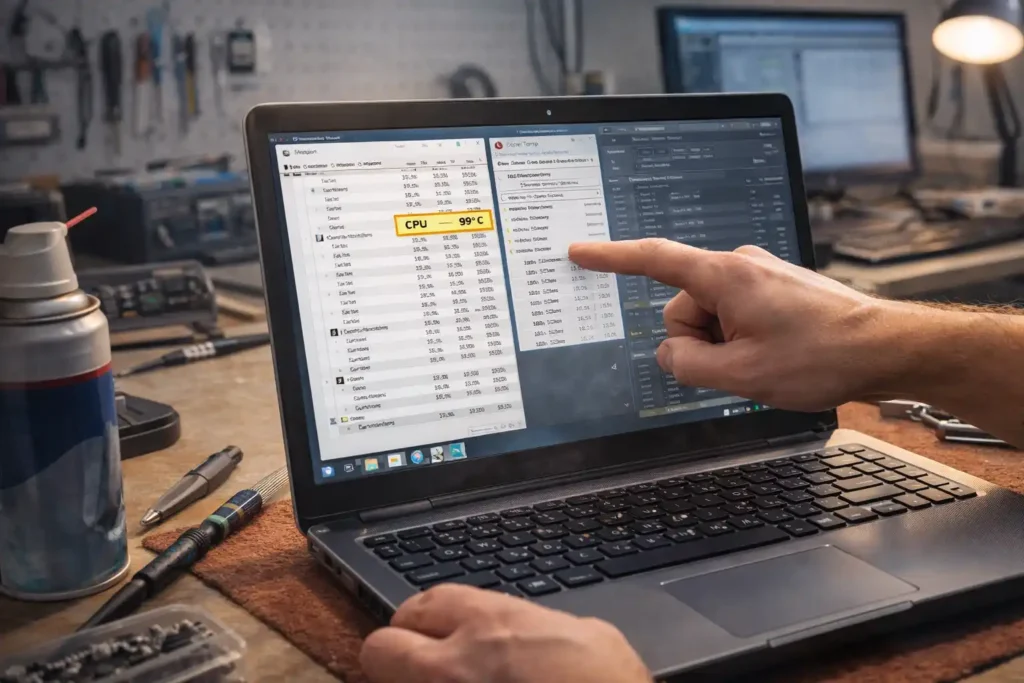
How to Check Laptop Temperature Safely
- BIOS/UEFI: Boot into BIOS to check CPU temperature
- Windows tools: Task Manager + Resource Monitor
- Apps: HWMonitor, Core Temp, SpeedFan
Temperature table above helps determine safe ranges.
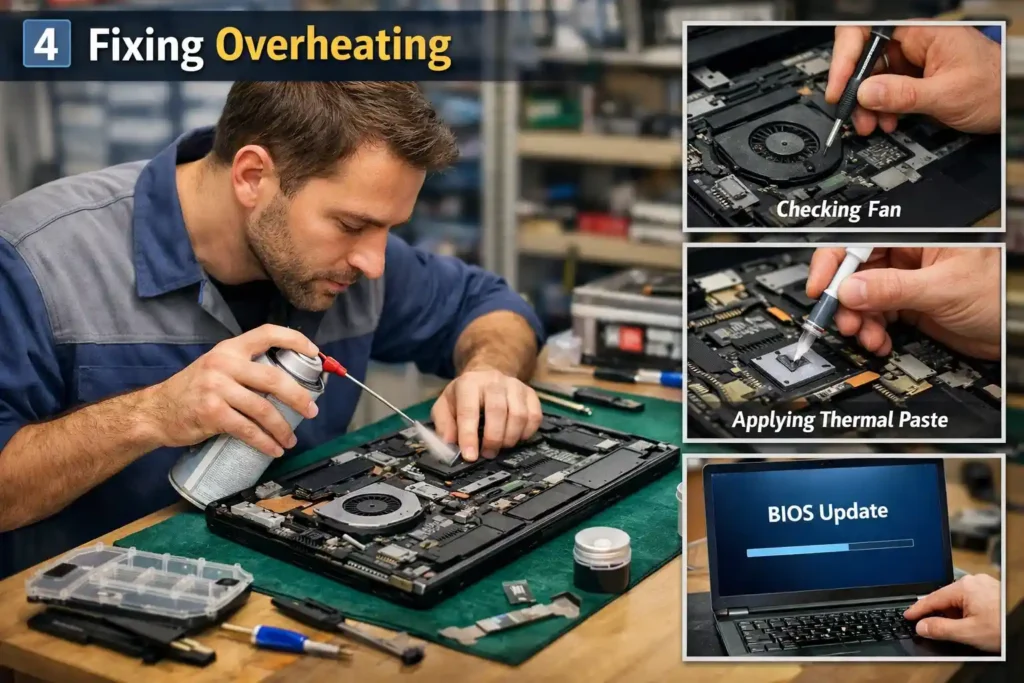
How to Fix an Overheating Laptop
- Shut down and let it cool
- Clean air vents and fans
- Improve ventilation
- Adjust power settings
- Update BIOS/UEFI if required
- Replace thermal paste if skilled
- Replace faulty fan
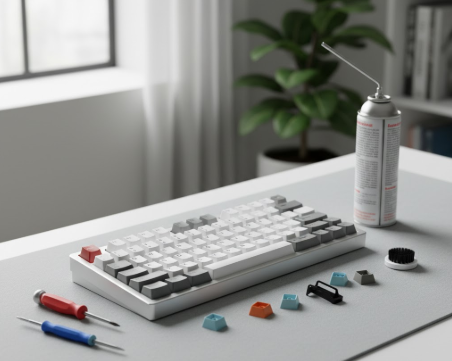
Laptop Fan & Cleaning Checklist
| Step | Action | Tools Needed | Frequency |
| 1 | Clean vents | Compressed air | Every 6–12 months |
| 2 | Check fan | Visual inspection | Every 6 months |
| 3 | Replace thermal paste | Thermal paste, screwdriver | Every 2–3 years |
| 4 | Update BIOS | Manufacturer site | As needed |
How to Cool Down a Laptop Immediately
- Place on a hard flat surface
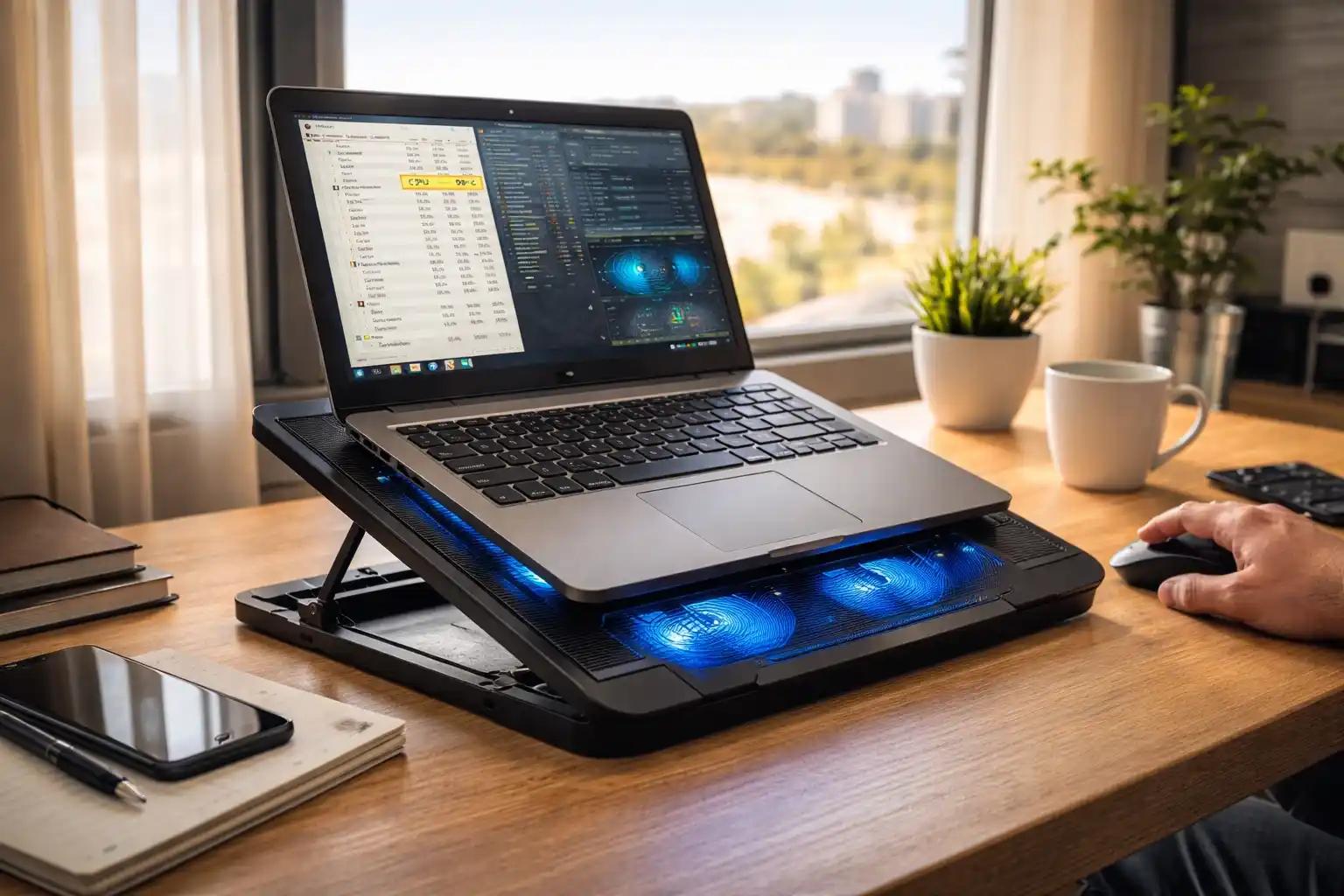
- Elevate rear using a laptop stand
- Close unnecessary apps
- Reduce screen brightness
- Use an external cooling pad
Tip: Cooling pads are effective for gaming laptops or high ambient temperatures.
When to Seek Professional Laptop Repair in Geelong
- Persistent overheating
- Grinding or non-spinning fan
- Burning smell
- Shutdowns during light tasks
- Swollen battery
Local credibility:
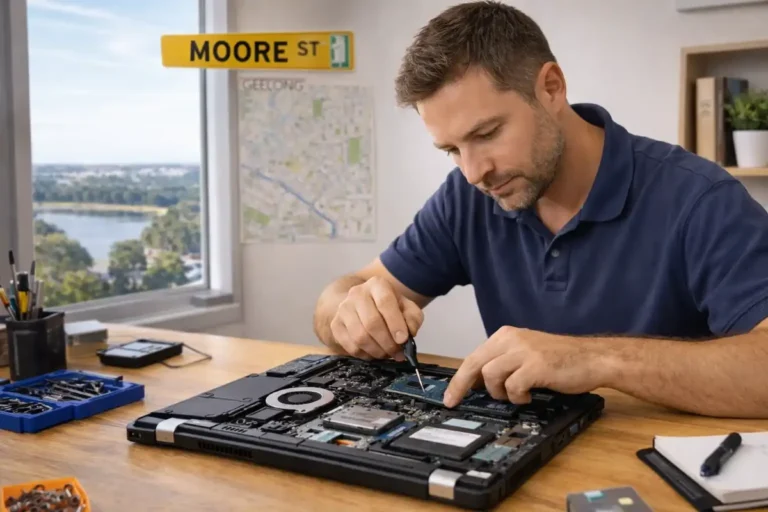
Persistent overheating may require professional laptop repair in Geelong to prevent motherboard or CPU damage.Schedule same-day repair for overheating laptops.
How to Prevent Laptop Overheating Long Term
- Clean fans and vents yearly
- Keep vents unblocked
- Use balanced power mode
- Monitor temperature
- Avoid direct sunlight
- Avoid soft surfaces
Fact:Dust accumulation can increase internal temps by 10–20°C (reported in TechSpot lab testing).
Local Case Study — Gaming Laptop Overheating in Highton
- Client complaint: Overheating during gaming
- Diagnosis: Dust + failing fan
- Repair: Cleaned fans + replaced thermal paste
- Result: CPU temp reduced 25°C, performance restored
Testimonials
“My Dell kept shutting down. The Geelong team fixed it same-day.” — Student, Deakin Waterfront
“Overheating issue gone. Laptop now cool even on Belmont carpet.” — Remote worker
“Fast, professional repair near Moorabool Street. Highly recommend.” — Local business owner
Awards & Case Studies
- Certified Geelong Computer Repair Centre
- Recognized by local tech associations
- Partnered with Deakin University IT department
Facts & Figures
- CPU throttles at 95°C (Intel)
- Battery life drops if consistently above 35°C (Battery University)
- Dust increases internal temps by 10–20°C (TechSpot Lab Tests)
FAQs
Need Laptop Overheating Repair in Geelong?
- Same-day diagnostics
- Transparent pricing
- No fix, no fee
- Servicing Newtown, Grovedale, Lara, Highton, and sorrounding suburbs.